
Step 1
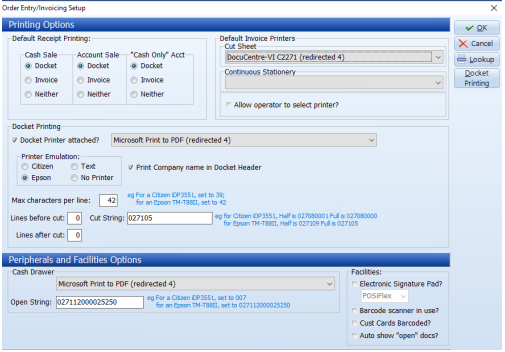
To setup printers in ProfiitPlus/Alchemii go to Sales Orders/Invoicing | System | Setup Options – Invoicing
Step 2
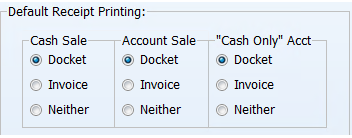
Select default receipt printing to docket, invoice or neither for Cash sale, account sale and “cash only” acct sales
Step 3
Select your default invoice printer for your terminal. This can be set under “Default invoice printers“.
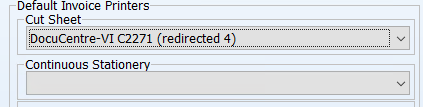
If you use multiple invoice printers you can tick an option which allows the operator to select which printer they want to print to.

Step 4
If you have a docket printer please tick the “Docket printer attached” option and select your docket printer.

We recommend using Bixalon, Nexa or Epson docket printers with our software.
There are also more options for docket printing by clicking on the “Docket Printing” button.

Step 5
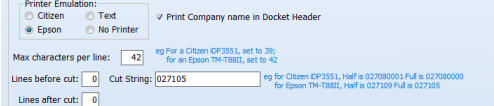
Most docket printer settings are as follows :
- Printer Emulation = Epson or Text
- Max Character Per line = 42
- Lines before cut = User Defined
- Lines after cut = User Defined
- Cut String = 027105
Cash drawer settings are as follows:
- Cash Drawer = (Set this to your docket printer)
- Open String = 027112000025250 (If you double click in this box it will auto fill)
Step 6
If signature pad is in use please select the correct brand/software of the signature pad.
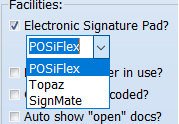
Also tick “barcode scanner in use?” if the terminal is using barcode scanners.
Click the OK button once finished.