
There are a number of different ways to print barcoded labels within the system. The following steps describe a simple method for printing individual or one-off labels.
Open the Labels Queue
From the Stock & Purchasing module, click on Receiving | Print Labels.

Add Labels to the Queue
Select a product by entering the Item Code in the Stock Code box or double-clicking to use the Lookup function.
Select the desired label type for your labels before adding it to the list. Note that you must have created the corresponding label “design” first. Speak to your Support Consultant if you need assistance with this.
In the Number Required box, select the number of labels you wish to print.
Now click the Add button.

In the Pending Labels grid you will see the labels that you have chosen to print. You may queue up as many labels as you wish before printing them.
Now click on the Print Button (the print job won’t start just yet).
Select Labels to Print
Select which Label Type to print, this will print each label request in the queue for that particular label type. Remember that you may have queued up label requests for other label types – they won’t be included in this print run.

Select Print Options
Make sure the correct printer is selected. You can change printers buy clicking the Change button. You can also click the Options button to make sure your label dimensions are set correctly.
Once your settings are correct, use the Save options permanently checkbox to save the settings for next time, then hit the Start button.

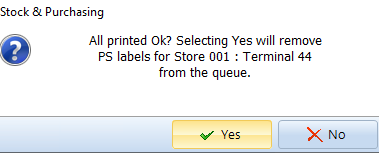
All Printed Ok?
Now your labels should have printed out successfully. If that’s the case, click the Yes button to remove these label requests out of the queue. If there was a problem printing, you can select No to leave the labels in the queue for later.
Conclusion
This is just one method of printing product labels. You can also queue labels in bulk from other parts of the system – for example, when receiving stock from a Supplier.
If you need some help with label printing, please contact the Foresiight Support Team.
If you are new to the label printing functionality or would like to customise the layout of your labels, our Professional Services team can help to get you set up.

